Map
Locate online players, zoom into an area, and reuse the cached map until a new image is generated.
 Subscriptions coming soon
Rust server management
Track down what happened and why your server slowed down. Investigate players, review PvP combat, read translated chat, and run RCON commands on desktop or mobile.
| Elapsed | Hit location | Damage | Remaining HP |
|---|---|---|---|
| 0.00 s | Chest | 32 | 68 |
| 0.28 s | Arm | 22 | 46 |
| 0.56 s | Head | 46 | 0 |
See how each screen supports day-to-day administration. Select an image to view it at full size. The screenshots are edited for English presentation and use demo or anonymized data.
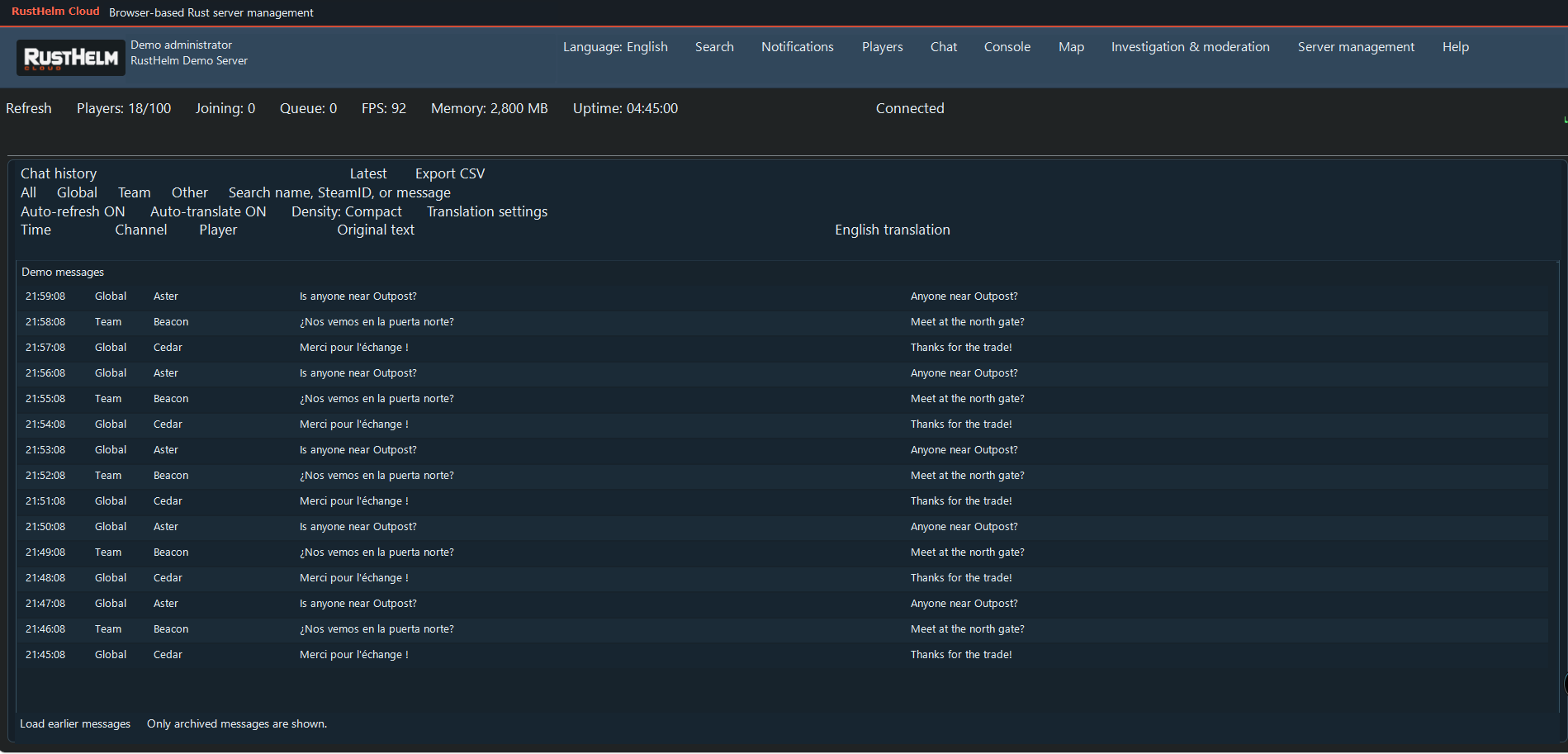
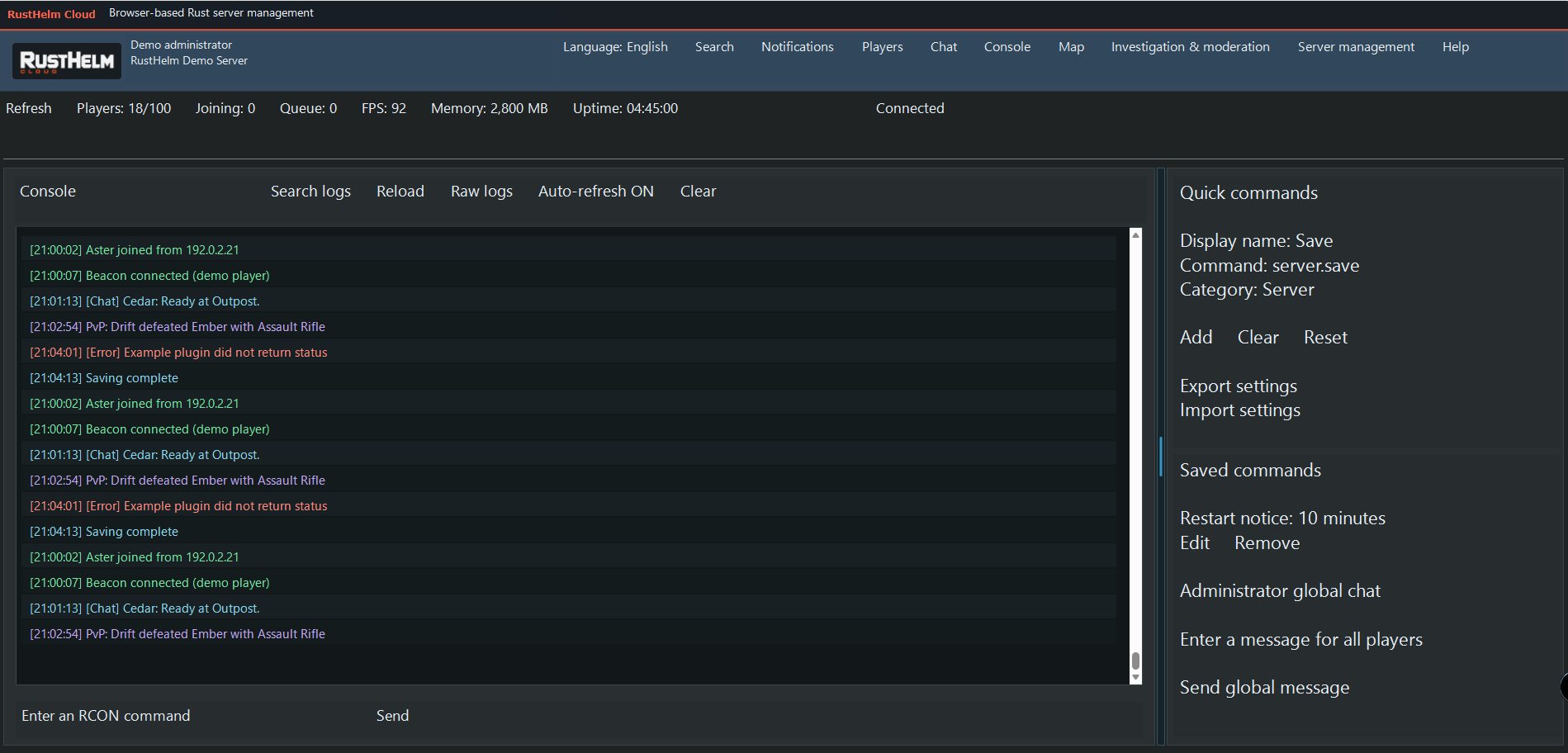
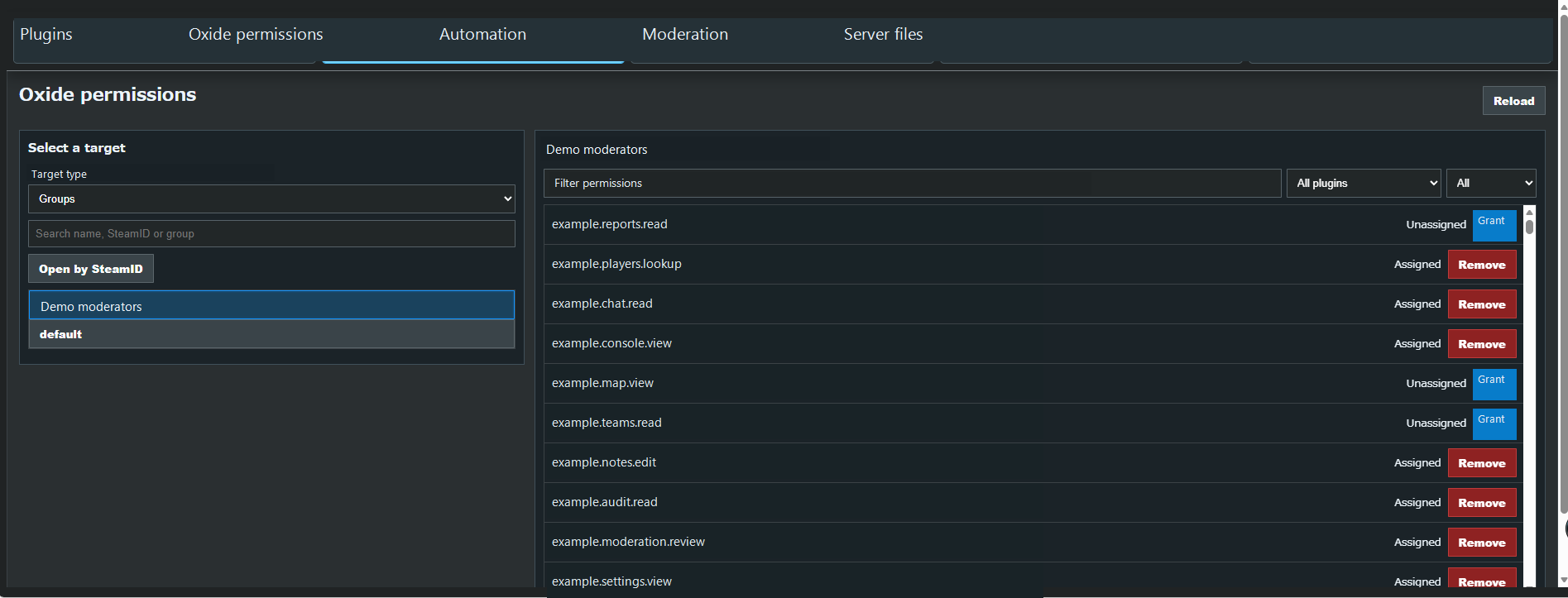
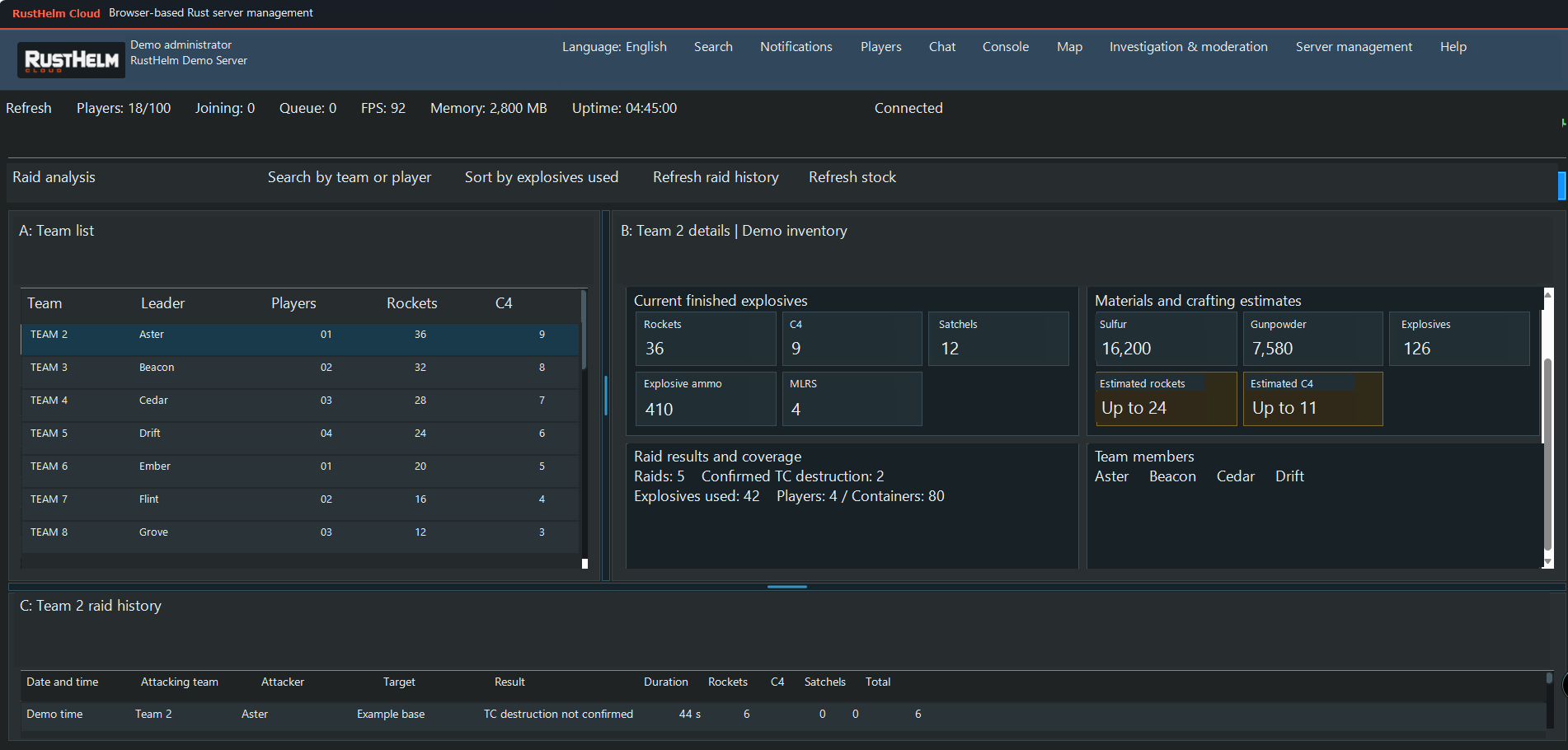
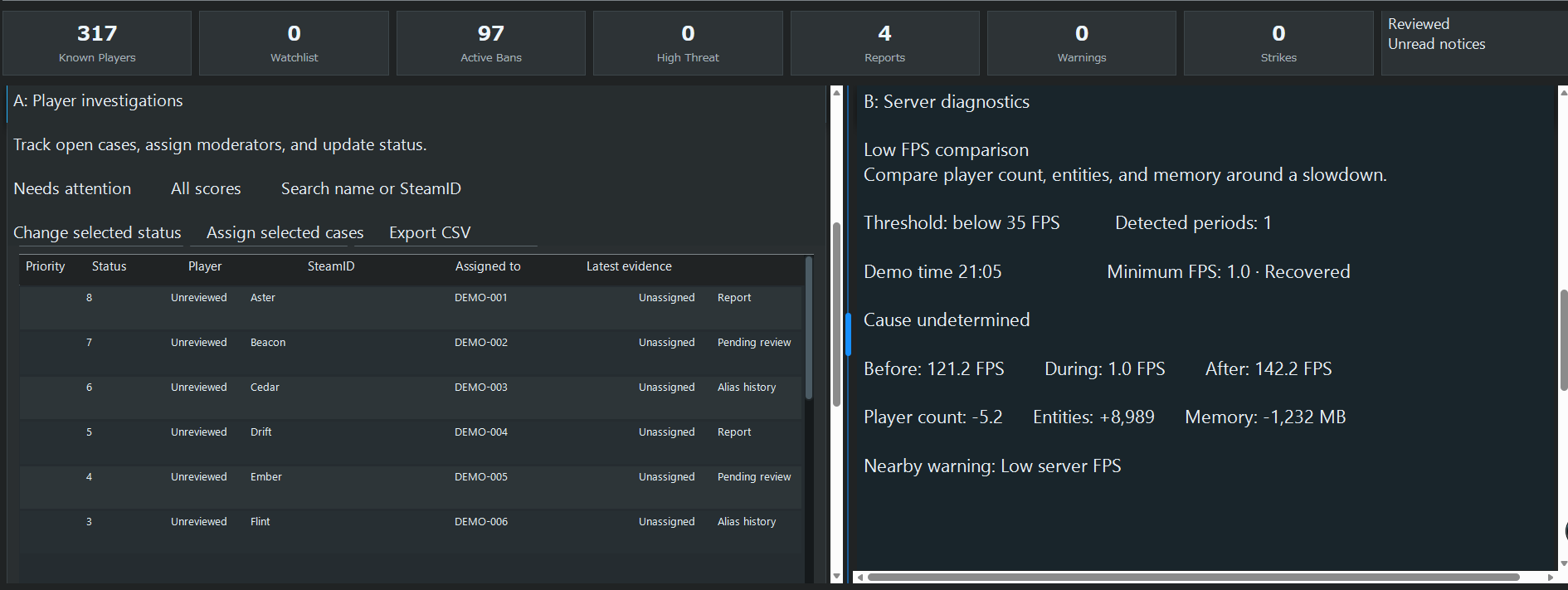
On the left, review open investigations, assign a moderator, and update case status. On the right, compare FPS, player count, entities, and memory before, during, and after a slowdown. Use nearby warnings to guide the investigation.
Locate online players, zoom into an area, and reuse the cached map until a new image is generated.
Track watchlisted players and investigation status. Compare player count, memory, and entity trends around FPS drops.
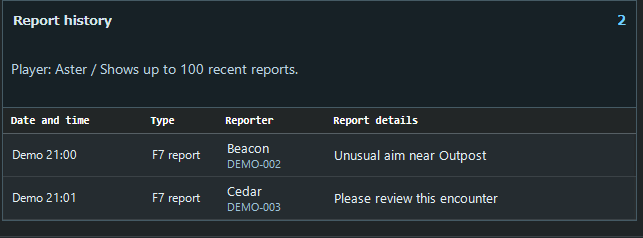
See F7 reports and operational notices, open the relevant tools, and mark notices as read.
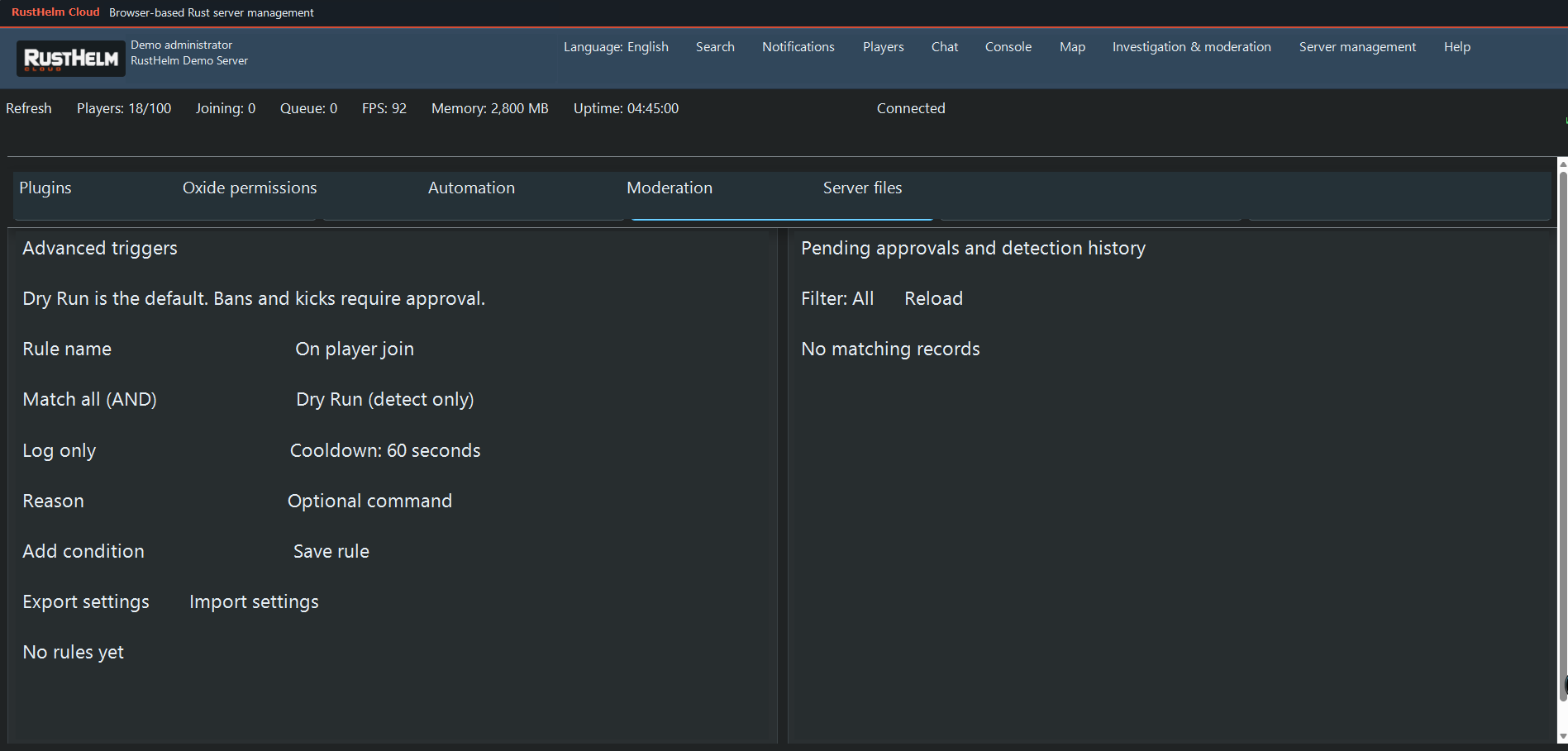
Combine trigger conditions, review detections and pending approvals, and track actions.
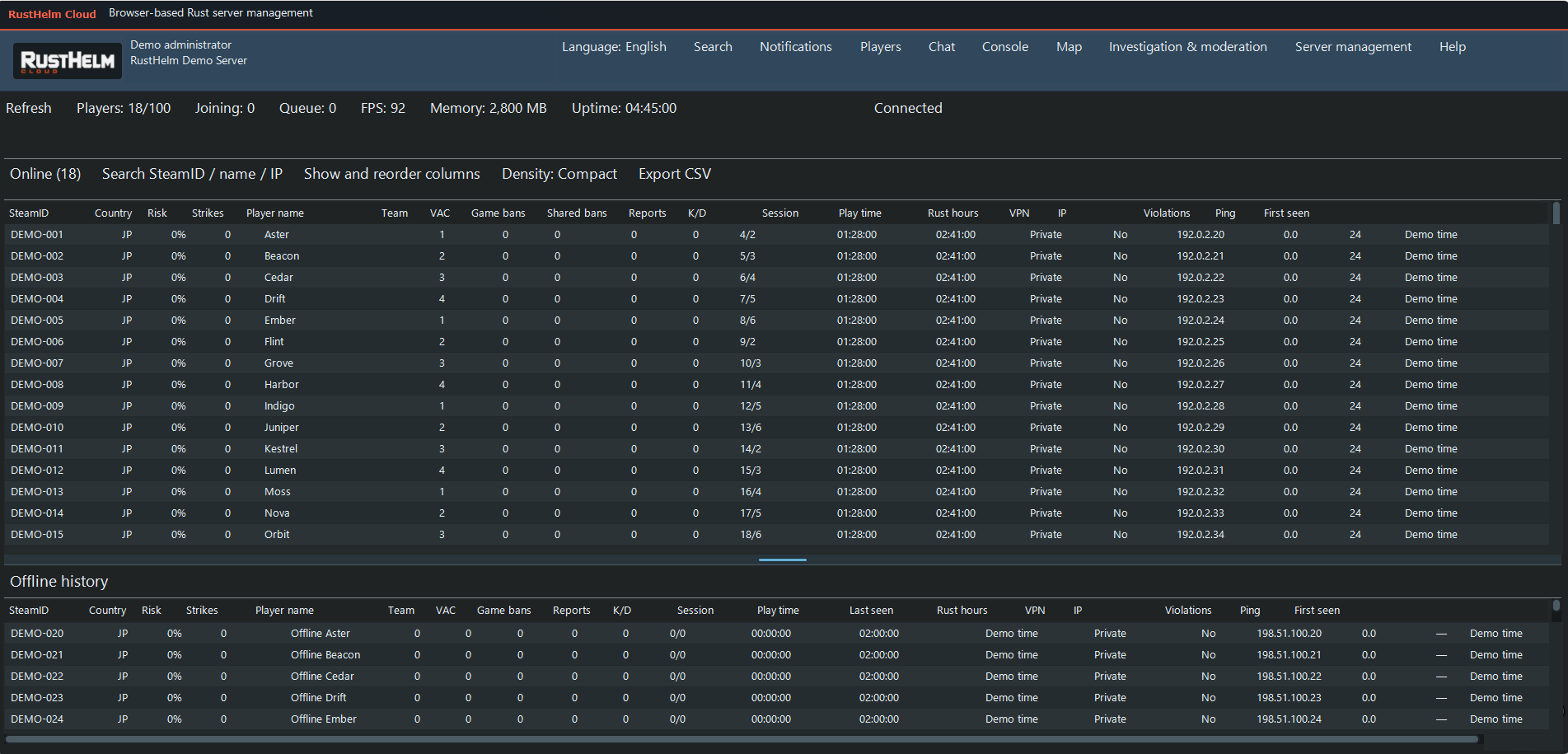
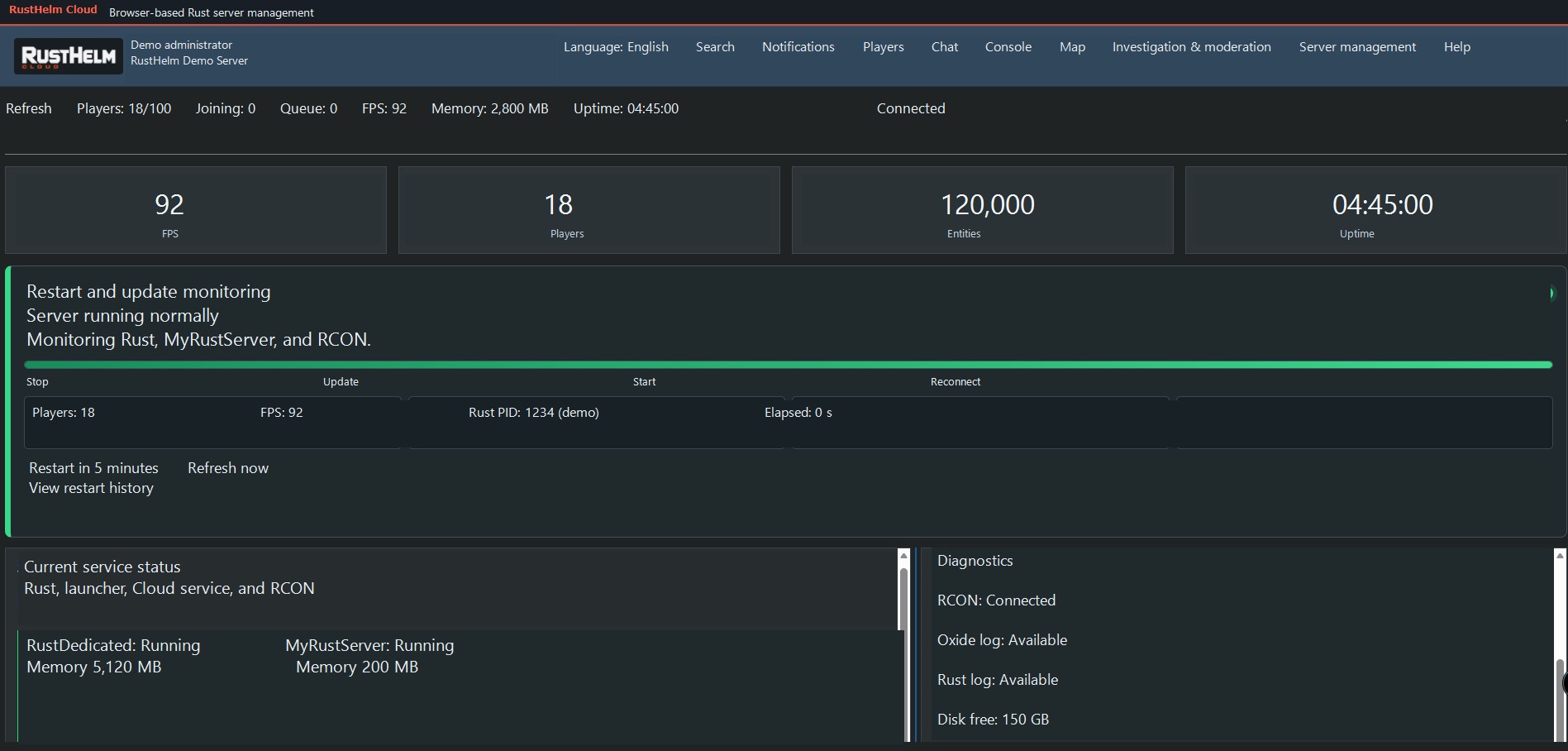
See player count, FPS, memory, uptime, and RCON status. Reconnect or access controls when available.
Set viewing and action permissions per administrator. Configure two-factor authentication and manage sign-ins.
Drag panel dividers to resize key screens. Save column positions and display density.
Review players, chat, notifications, and combat details from your phone using the same account.
RustHelm Cloud currently supports Japanese and English, with more languages planned. Original chat messages remain available in either interface language.
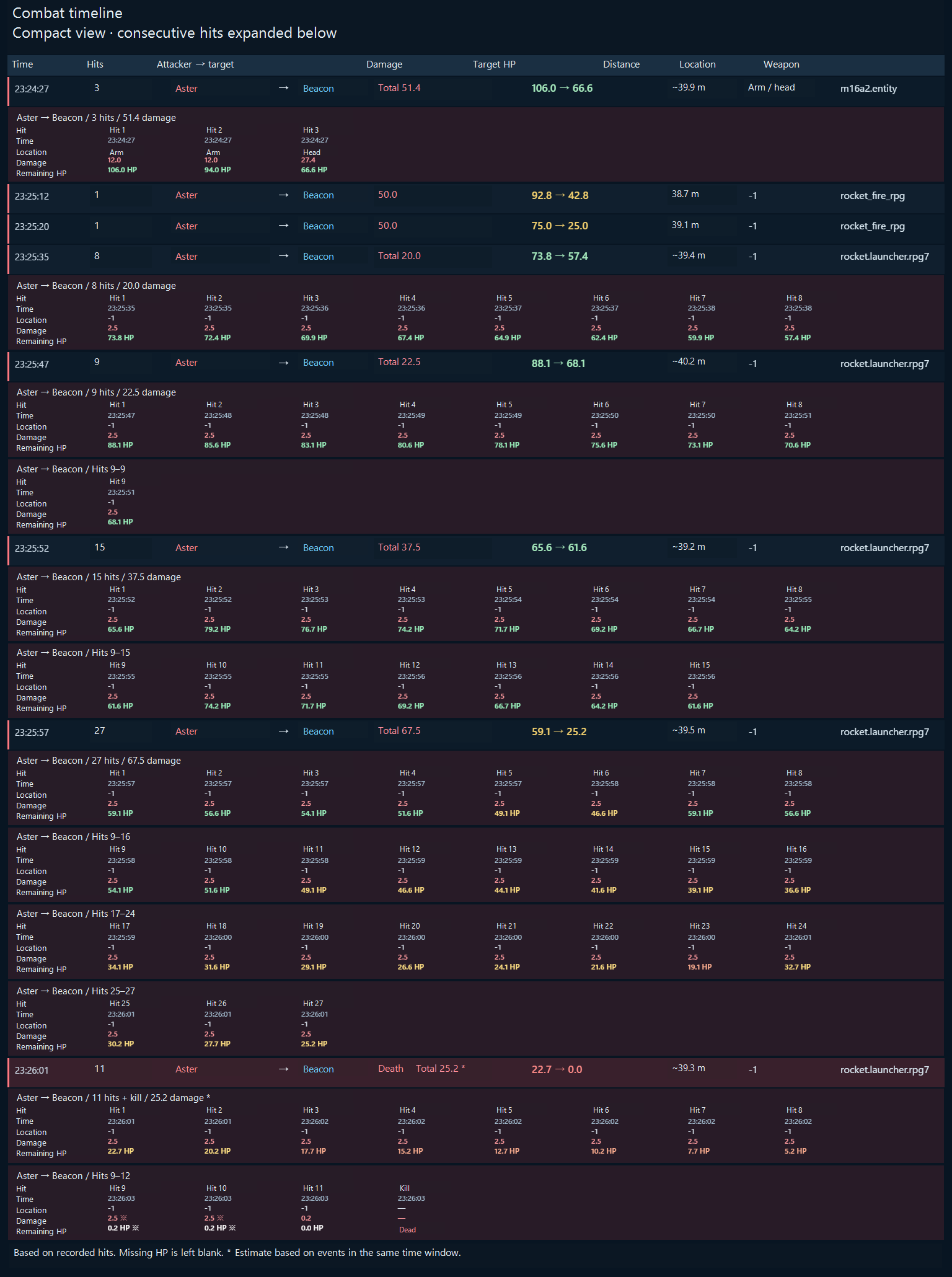
These are fictional fights for player Aster. Choose a fight to see its individual hits.
Three hits took Beacon from 100 HP to zero.
| Elapsed | Attacker → target | Hit location | Damage | HP (before → after) | Distance |
|---|---|---|---|---|---|
| 0.00 s | Aster → Beacon | Chest | 31 | 100 → 69 | 24.8 m |
| 0.62 s | Aster → Beacon | Arm | 22 | 69 → 47 | 24.2 m |
| 1.56 s | Aster → Beacon | Head | 47 | 47 → 0 (dead) | 23.4 m |
Aster landed the first hit, but Cedar dealt the final blow. The first hit has no recorded HP value.
| Elapsed | Attacker → target | Hit location | Damage | HP (before → after) | Distance |
|---|---|---|---|---|---|
| 0.00 s | Aster → Cedar | Chest | 32 | Unavailable | 57.5 m |
| 2.31 s | Cedar → Aster | Head | 79 | 79 → 0 (dead) | 55.2 m |
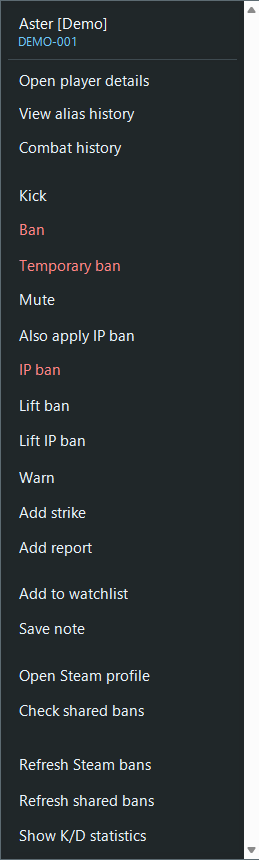
Review the reporter and target → Check aliases, teams, and combat history → Decide how to respond
Check FPS and player count → Compare trends before and after the slowdown → Look for console errors at the same time
Identify the attacking team → Review raid history → Check stock levels if needed
Base plan
Investigate players, moderate chat, run RCON commands, and review combat history from a single dashboard.
See setup requirementsPaid add-on
Connect the base plan to the Rust server plugin TeamRaidStock.
| Feature | Base plan | Base plan + add-on |
|---|---|---|
| Player management, F7 reports, and bans | Included | Included |
| Chat, translation, and RCON console | Included | Included |
| PvP combat history, K/D, and image export | Included | Included |
| Team explosive inventory | — | Included |
| Crafting estimates from materials | — | Included |
| Raid history by team | — | Included |
Subscriptions are coming soon. Pricing and terms will be announced when sign-ups open.
Before setup, ensure you have Rust server administration rights, RCON connection details, and an Oxide environment that can load plugins.
Sign in on the web and confirm the Rust server you want to connect under Managed Servers in Plans and Servers.
Download RustHelmBridge.cs from the subscriber portal. Place it in the server's oxide/plugins folder and confirm it loaded in Oxide or the server console.
Configure the connection in the dashboard. Check for Connected in the header, then open Players to verify that online players are listed.
After a PvP record has been captured, right-click the player's name and open Combat History. Select a fight to review recorded hits and remaining HP.
Raid stock and raid history require the TeamRaidStock integration add-on.
You need a Rust server, its RCON connection details, and permission to install Oxide plugins. Download RustHelmBridge.cs from the subscriber portal and place it in the server's oxide/plugins folder.
Yes. Use the same account in your phone's browser to check notifications, read chat, and scroll through combat details.
RustHelm Cloud runs in your browser, so you can also use built-in page translation where supported. Translate the interface and help text into a language you prefer.
Save a fight's complete timeline as one image to share on Discord or elsewhere, including weapons, distance, hit locations, and remaining HP.
TeamRaidStock integration, which adds team explosive inventory, crafting estimates, and raid history, is a paid add-on. The base plan includes the web dashboard and the required RustHelm Bridge plugin.
Sign-ups are in preparation. Once they open, use the subscriber portal to review plans and manage your subscription.